How to Tackle Web Accessibility Requirements: The 8 Most Common WCAG Barriers and How to Fix Them
Web accessibility (commonly abbreviated as A11y) is grounded in a simple principle: the web should work for everyone, regardless of ability. The Web Content Accessibility Guidelines (WCAG) provide the technical standard for making that happen, and WCAG 2.2 Level AA is the benchmark most organizations are measured against today.
The problem is that most websites still don’t meet it.
The 2026 WebAIM Million report, which evaluates accessibility across the top one million websites, found that 95.9% of home pages had detectable WCAG conformance failures, averaging 56.1 errors per page.
That’s a reversal of several years of gradual improvement, and the report attributes much of the regression to increasing page complexity and rising ARIA misuse.
This article breaks down the six most common accessibility barriers identified in that report, explains why they persist, and offers concrete approaches to prevent or resolve each one.
Web Accessibility Requirements: Why They Matter
Human diversity as a web development requirement starts by highlighting potential barriers users might face when interacting with digital content: what if you can't see, hear, or interact with the website in typical ways? What if a cognitive disability makes it hard to understand complex layouts?
The Web Content Accessibility Guidelines (WCAG), maintained by the W3C, are the global technical standard for addressing these barriers.
WCAG 2.2 Level AA is the benchmark most regulations reference today, including the ADA in the United States, Section 508 for federal agencies, and the European Accessibility Act (EAA), which became mandatory across EU member states in June 2025.
The U.S. Department of Justice finalized a rule requiring state and local governments to meet WCAG 2.1 Level AA, with phased deadlines through 2027.
Creating awareness is just the first step toward a successful resolution. Recognizing the most common errors in web products allows us to prevent them when building new content and fix them where they already exist.
The Most Common A11y Issues According to the 2026 WebAIM Million Report
Every year, WebAIM (Web Accessibility in Mind) conducts an evaluation known as the “WebAIM Million,” analyzing accessibility across the top one million most-visited websites.
The 2026 report found that 95.9% of home pages had detectable WCAG 2.2 conformance failures, averaging 56.1 errors per page.
That represents a 10.1% increase from 2025 and reverses several years of gradual improvement.
These findings are crucial for understanding how well sites adhere to the Web Content Accessibility Guidelines (WCAG), which are designed to make web content accessible to people with disabilities. The report also attributes much of the regression to a significant increase in page complexity (home pages now average 1,437 elements, up 22.5% in one year) and a sharp rise in ARIA code.
The following chart displays the most common WCAG failures, based on data from the 2026 WebAIM Million report.
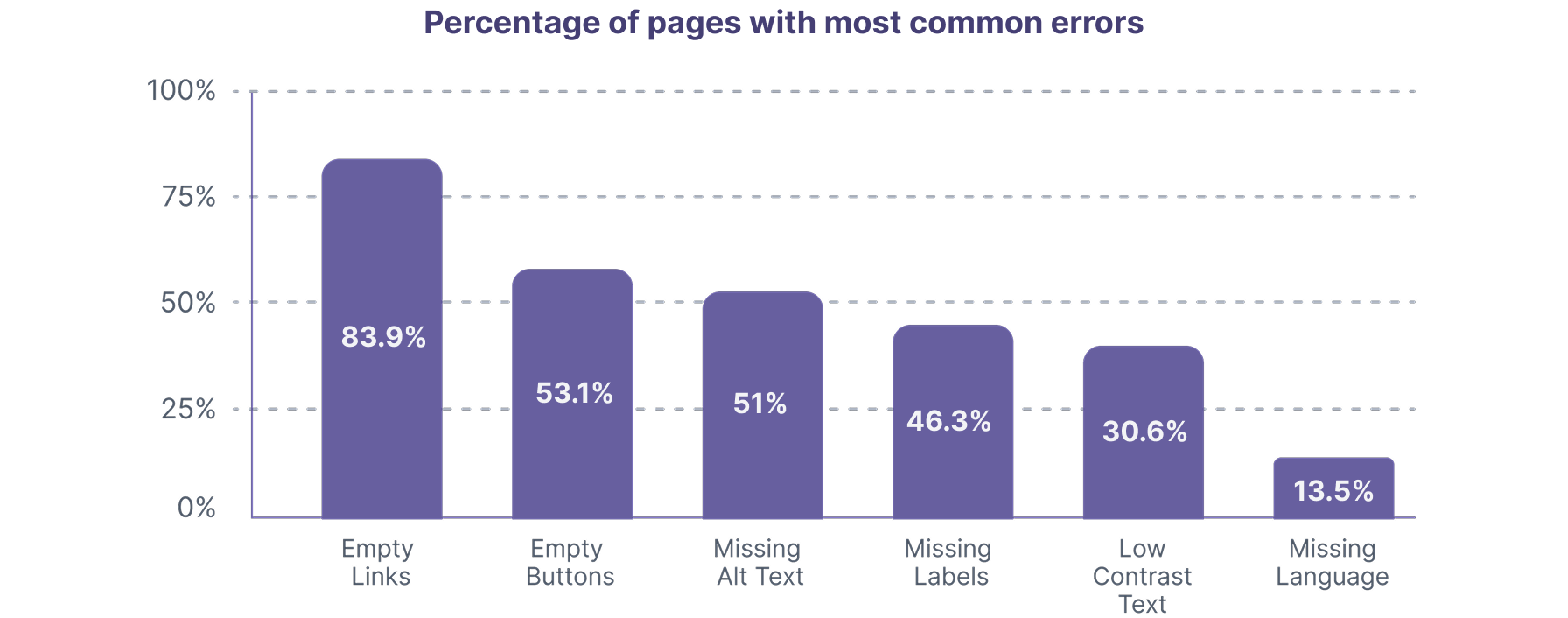
These six categories account for 96% of all detected errors. The same failure types have topped this list for seven consecutive years.
Beyond these six, ARIA misuse and broken skip navigation links round out the eight most impactful barriers.
Let’s take a closer look at each one and how to prevent or fix it.
1. Low Contrast Text
The most common issue is low-contrast text, found on 83.9% of analyzed websites.
This represents a spike back up after three years of gradual decline (it had dropped to 79.1% in 2025).
On average, each home page contained 34 distinct instances of low-contrast text, up 15% from the prior year. The Web Content Accessibility Guidelines require a minimum text contrast ratio of 4.5:1 for normal text and 3:1 for large text (18px or larger, or 14px bold) to guarantee readability.
How to Fix Low Contrast Text
Color accessibility emphasizes two main areas.
The first is Contrast, the difference in luminance between text and its background. WCAG sets the minimum at 4.5:1 for normal text, a threshold based on research into the needs of people with low vision. This ratio balances readability with design flexibility, ensuring that it is accessible to everyone.
The second area is Color Dependence, which relates to conveying information through color alone, like using red to indicate required fields. This practice can be problematic for those who cannot distinguish colors. To make interactive elements accessible, they should be identifiable by more than color alone, through underlines, symbols, icons, or context.
To illustrate the improper use of color, we present a simple form below.
2. Missing Alternative Text for Images
The second most common WCAG issue is missing alternative text for images, present on 53.1% of sites.
The web is becoming increasingly image-heavy: the average home page now contains 66.6 images, a 13.6% increase in a single year. Of all those images, 16.2% lacked alt text. Critically, 45% of images missing alt text were linked images, meaning those links had no accessible description at all.
All the images on a site should have alternative text so screen readers can convey their purpose, and because well-written alt text also contributes to SEO.
How to Fix Missing Alternative Text for Images
Providing alternative methods for images, such as captions, alt attributes, title attributes, or aria-label tags, is essential because many users who navigate the web with assistive technology rely solely on text.
Furthermore, it is crucial to emphasize that for images containing text, it is indispensable to provide this text through an alternative method. This ensures that all users can fully access the visual content.
Here are examples of correct and incorrect implementations, side by side:

|
| Correct Implementation | Incorrect Implementation |
|---|---|
<img src="caution.jpg" alt="Caution Radiation Area"> The alt attribute is the preferred method for providing alternate content. | <img src="caution.jpg">Missing alt attribute entirely. No alternative method to convey the image’s description. |
<img src="caution.jpg" title="Caution Radiation Area"> The title attribute is acceptable but less compatible with certain assistive technologies. | <img src="caution.jpg" alt="sign"> The alt text is not descriptive enough to convey the image’s purpose. |
<img src="divider.png" alt=""> Decorative images should use an empty alt attribute so assistive technologies skip them. | <img src="caution.jpg" alt="image of sign that says Caution Radiation Area"> Avoid redundant words like “image of” or “picture of.” Screen readers already announce that the element is an image. |
3. Missing Form Input Labels
51% of websites had issues related to missing form input labels in 2026, crossing the 50% threshold for the first time and making this the third most prevalent barrier. The average home page now has 6.9 form inputs (a 36% increase in three years), and one third (33.1%) of those inputs were not properly labeled. The absence of labels creates difficulties for users relying on screen readers or voice control, as they cannot determine the purpose of each field.
How to Fix Missing Form Input Labels
To avoid issues with missing labels, ensure that each form element is linked to its respective instructions and error messages. Each input should be associated with a label through the for attribute matching the input’s id. All form components should be accessible via keyboard.
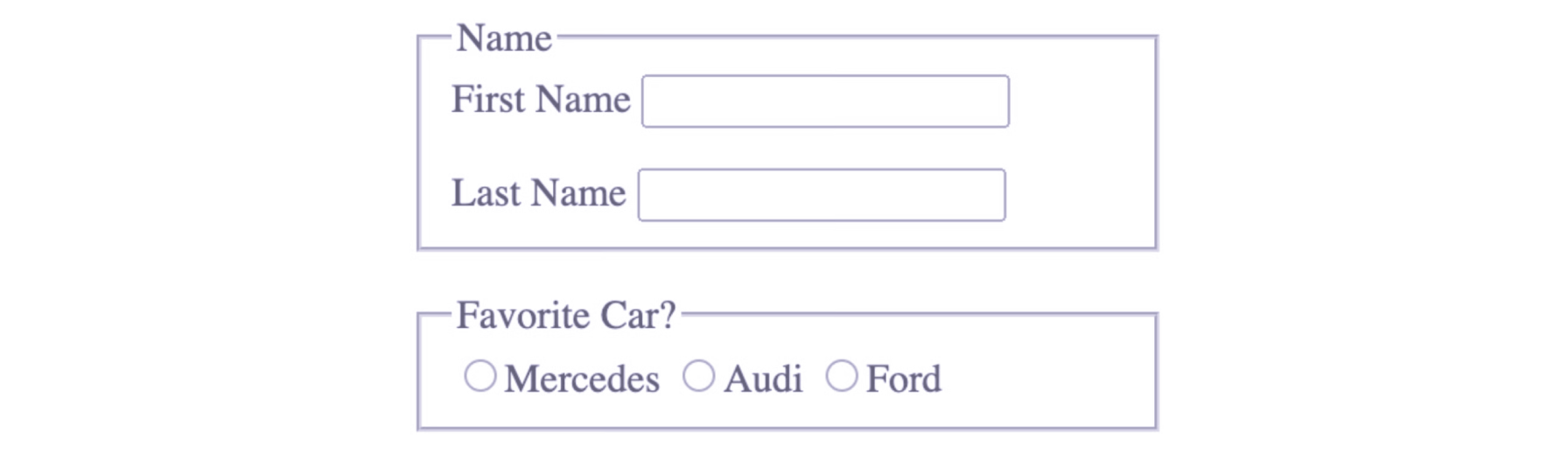
To illustrate, here is a simple form in which each element is labeled and linked. “First Name” and “Last Name” are part of a “Name” group within a fieldset element, defined with a legend tag to provide context.
Each fieldset can include only one legend. For radio buttons, such as “Favorite Car,” the fieldset and legend approach provides grouping and a descriptive label, with individual buttons equipped with a “title” attribute for assistive technologies.
| <fieldset> <legend>Name</legend> <label for="firstname">First Name</label> <input type='text' id='firstname'> <label for="lastname">Last Name</label> <input type='text' id='lastname'> </fieldset> <fieldset> <legend>Favorite Car?</legend> <input type='radio' name='car' value='mercedes' id='mercedes' title='Mercedes'><label for="peasoup">Mercedes</label> <input type='radio' name='car' value='audi' id='audi' title='Audi'><label for="chicken">Audi</label> <input type='radio' name='car' value='ford' id='ford' title='Ford'><label for="tomato">Ford</label> </fieldset> |
4. Empty Links
46.3% of websites had empty or ambiguous links in 2026. The report found that websites encounter issues with ambiguous link descriptions, such as “here,” “continue,” “more,” or even empty links, with 15.2% of pages still containing ambiguous link text and an average of 5.3 instances per affected page.
These unclear descriptions can pose difficulties for users, as they may not immediately understand the link’s purpose. Moreover, ambiguous descriptions can negatively impact your Google Lighthouse score.
How to Fix Empty Links
Links are elements designed to facilitate navigation. They are crucial for quick navigation on a website, especially for users of assistive technology like screen readers, who prefer to jump from link to link rather than reading the entire page.
The problem arises with links that require additional context to be understood, such as “Click Here” or “Read More.” It’s vital to improve the link text itself instead of relying solely on attributes like ‘title’ or ARIA to make them accessible.
If an image serves as a link, the image’s alt text becomes the link’s accessible name. Since 45% of images missing alt text in the 2026 report were linked images, this is one of the most common sources of empty links.
5. Empty Buttons
Many websites have empty buttons due to a poor distinction between links and buttons, or because icon-only buttons lack accessible labels. A button “performs actions” and serves as an invitation to interact, whereas a link navigates to a different location.
The 2026 analysis found that 30.6% of websites have this issue, a slow but steady increase year over year (up from 25% in 2019).
How to Fix Empty Buttons
Every button needs a text label, either visible or through aria-label. Icon-only buttons (search, hamburger menu, close) should always include an aria-label describing the action: aria-label="Search", aria-label="Close menu", aria-label="Open navigation". Using the correct element ensures assistive technology communicates the right interaction model to the user.
Additionally, long navigation bars can be challenging for screen reader and keyboard users, so it’s recommended to offer a “skip navigation” link at the beginning of the page that allows jumping directly to the main content.
6. Missing Document Language
The sixth most common WCAG issue is missing document language. The 2026 analysis found that 13.5% of websites lack a declared document language. This is actually the one consistent bright spot: the number has dropped from 33.1% in 2019 to 13.5% in 2026. Defining the document language ensures that screen readers and other assistive technologies can accurately interpret and present content in the correct language.
How to Fix Missing Document Language
Declaring the language of your website is crucial for assistive technology to interpret and interact accurately with your content. While assistive technology can read content in multiple languages, it must be informed of the primary language used on the page.
The implementation is minimal. Add the lang attribute to your HTML element:
1
<html lang="en">For multilingual pages, use the lang attribute on specific elements to indicate language switches:
1
<p>The French word for hello is <span lang="fr">bonjour</span>.</p>7. ARIA Misuse: When Accessibility Attributes Cause More Errors
ARIA (WAI-ARIA, the Web Accessibility Initiative’s Accessible Rich Internet Applications specification) describes attributes designed to enhance assistive technology compatibility. It is a powerful tool, but the 2026 data tells a concerning story.
ARIA usage has grown sixfold since 2019, reaching over 133 ARIA attributes per page on average in 2026 (a 27% increase in a single year).
ARIA labels and descriptions alone increased 28%. Yet pages with ARIA present averaged 59.1 errors, compared to 42 errors on pages without ARIA. That translates to 17 additional potential barriers on ARIA-equipped pages.
How to Fix ARIA Misuse
This does not mean ARIA itself causes errors; pages using ARIA tend to be more complex. But the correlation is clear: more ARIA does not mean more accessible. It is crucial to understand when and where to use ARIA effectively to minimize additional errors.
The first rule of ARIA, as stated by the W3C, is to use native HTML elements with built-in semantics and behavior whenever possible, instead of repurposing elements with ARIA roles. A <button> element is always preferable to a <div role="button">.
8. Broken Skip Navigation Links
The last common WCAG issue we cover is related to skip navigation links. These allow keyboard and screen reader users to bypass repeated navigation blocks and jump directly to the main content. The 2026 report found that 17.1% of home pages included a skip link, up from 15.3% in 2025.
However, one in ten of those skip links was broken, either hidden in an inaccessible manner (using display: none or visibility: hidden, which removes them from the accessibility tree) or pointing to a target that did not exist on the page.
Quick Reference: How to Prevent Common WCAG Barriers
| WCAG Barrier | 2026 Prevalence | Prevention |
|---|---|---|
| Low Contrast Text | 83.9% | Minimum contrast ratio of 4.5:1 for normal text, 3:1 for large text. Never rely on color alone. |
| Missing Alt Text | 53.1% | Use alt attributes on all informational images. Use alt="" for decorative images. Avoid redundant phrasing. |
| Missing Form Labels | 51% | Link each input to a <label> via for/id. Group related fields with <fieldset> and <legend>. |
| Empty Links | 46.3% | Write descriptive link text. Add alt text to linked images. Avoid "click here" or "read more." |
| Empty Buttons | 30.6% | Add visible text or aria-label to all buttons, including icon-only buttons. |
| Missing Doc Language | 13.5% | Add lang attribute to <html>. Use lang on elements for in-page language switches. |
| ARIA Misuse | 59.1 avg errors vs 42 without | Use native HTML elements first. Only add ARIA when no native equivalent exists. |
| Broken Skip Navigation Links | 1 in 10 broken | Position offscreen with CSS, make visible on :focus. Ensure target ID exists on the page. |
How Technology Choices Affect Web Accessibility
One of the most important findings in the 2026 report is the relationship between technology stack and accessibility outcomes.
The report found significant variation in error rates across CMS platforms and JavaScript frameworks:
| Technology | Avg. Errors per Page | vs. Average (56.1) |
|---|---|---|
| Astro | 9.0 | −84% |
| Next.js | 40.9 | −27.1% |
| Drupal | 41.2 | −26.5% |
| React | 43.5 | −22.5% |
| WordPress | 52.8 | −5.8% |
| Shopify | 75.1 | +33.9% |
| Prestashop | 143.2 | +155.3% |
Drupal-powered sites averaged 41.2 errors, 26.5% fewer than the overall average. Next.js and Astro performed even better among JavaScript frameworks. E-commerce platforms like Shopify and Prestashop showed significantly higher error rates, likely driven by the complexity of product catalogs, carousels, and third-party integrations.
The report’s conclusion ties this to a broader trend: increased reliance on third-party libraries, automated code generation, and AI-assisted development (“vibe coding”) is producing larger, more complex pages without proportional attention to accessibility fundamentals, which is why we focus on using AI to accelerate auditing without skipping human validation.
Building Accessibility Into Your Development Workflow
The same eight accessibility barriers have appeared in the WebAIM Million report year after year. The issues are well-understood, the solutions are documented, and the tooling exists.
Automated tools like WAVE, axe-core, and Lighthouse can catch many of these errors during development, but automated testing alone is insufficient, especially if you don’t pair it with an audit approach and metrics that hold up over time.
Keyboard-only navigation testing, screen reader validation, and manual review remain necessary for comprehensive accessibility coverage, which is why QA practices that include accessibility validation need to be part of the release definition.
As we continue building for a more accessible digital environment, applying these practices consistently matters even more as voice interfaces and AI agents change how people navigate.
If you want to learn more about web accessibility, read our brief introduction to A11y.
Need help making your website accessible or want an accessibility audit? Our web accessibility work covers both foundational WCAG fixes and complex UI patterns.
Contact us to help you meet both basic requirements and complex implementations.

About the author
Related posts
AI vs. Automation: What’s the Difference and How to Choose the Right Layer
By David Cespedes, July 10, 2026What is the difference between AI and automation, and how do you decide which layer belongs where? Here’s our practitioner’s decision framework from enterprise pipeline implementations.

What Is Business Process Automation and How to Define What to Automate First
By David Cespedes, June 16, 2026Business process automation works when you define the right processes first. We discuss how to identify automation candidates and avoid the most common failure modes from our enterprise experience.
Take your project to the next level!
Let us bring innovation and success to your project with the latest technologies.